
ORICO Dual Bay M.2 SSD Enclosure M.2 NVMe Cloner NVMe Enclosure Adapter 10Gbps USB C M-Key Aluminum External Hard Drive Enclosure Max to 8TB Tool Free(No Drive)
Product details
| Management number | 230456202 | Release Date | 2026/06/18 | List Price | US$32.00 | Model Number | 230456202 | ||
|---|---|---|---|---|---|---|---|---|---|
| Category | |||||||||
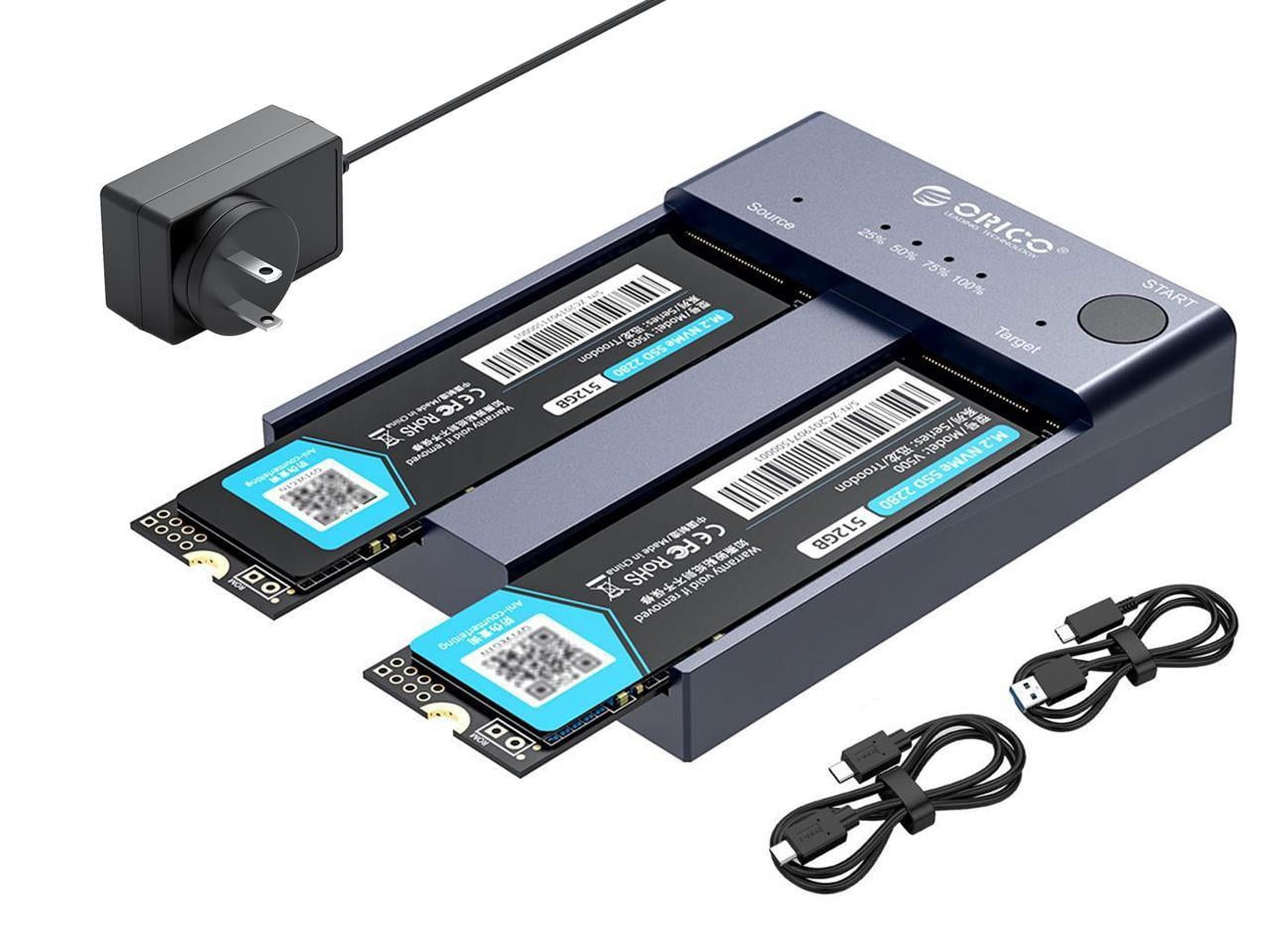
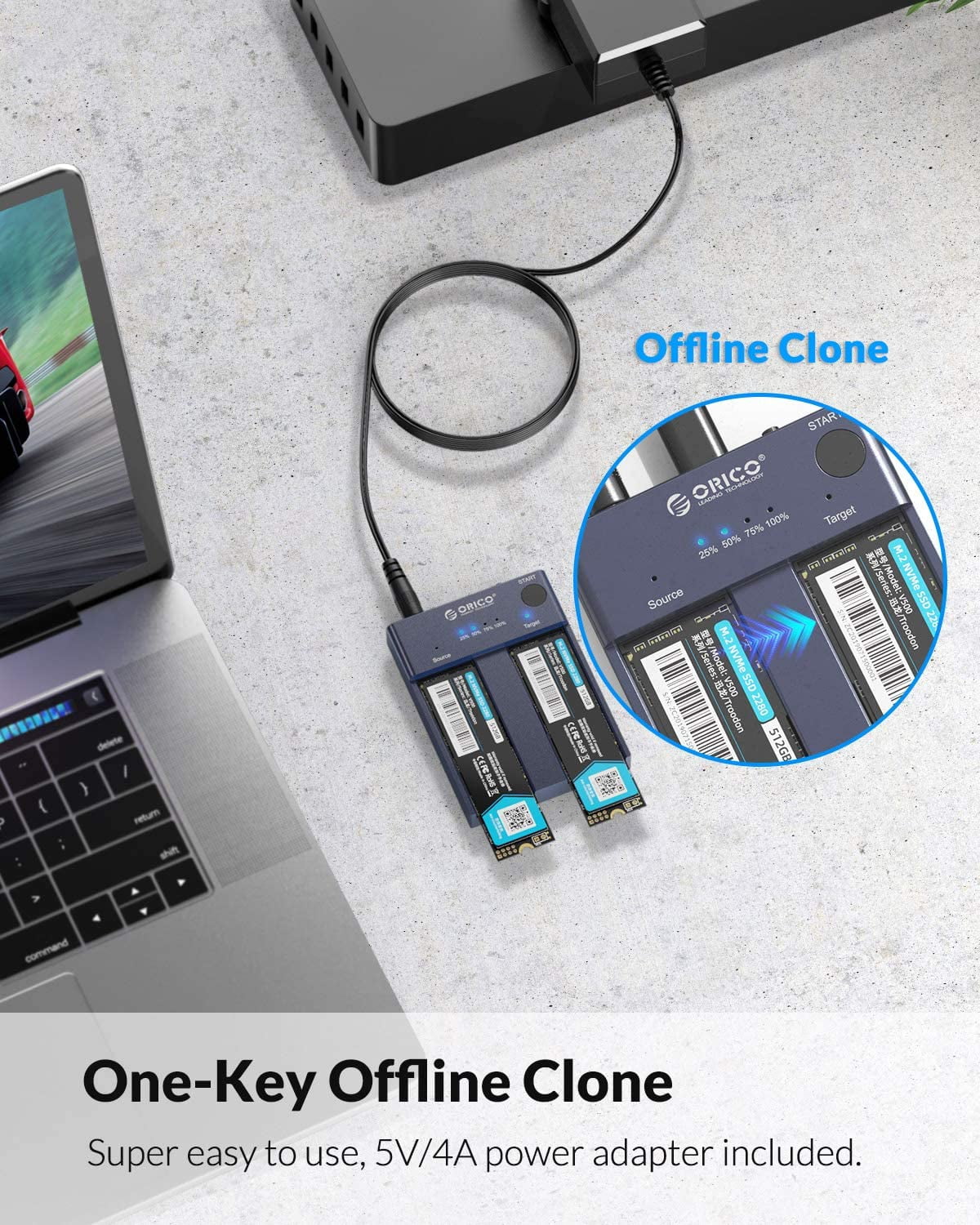
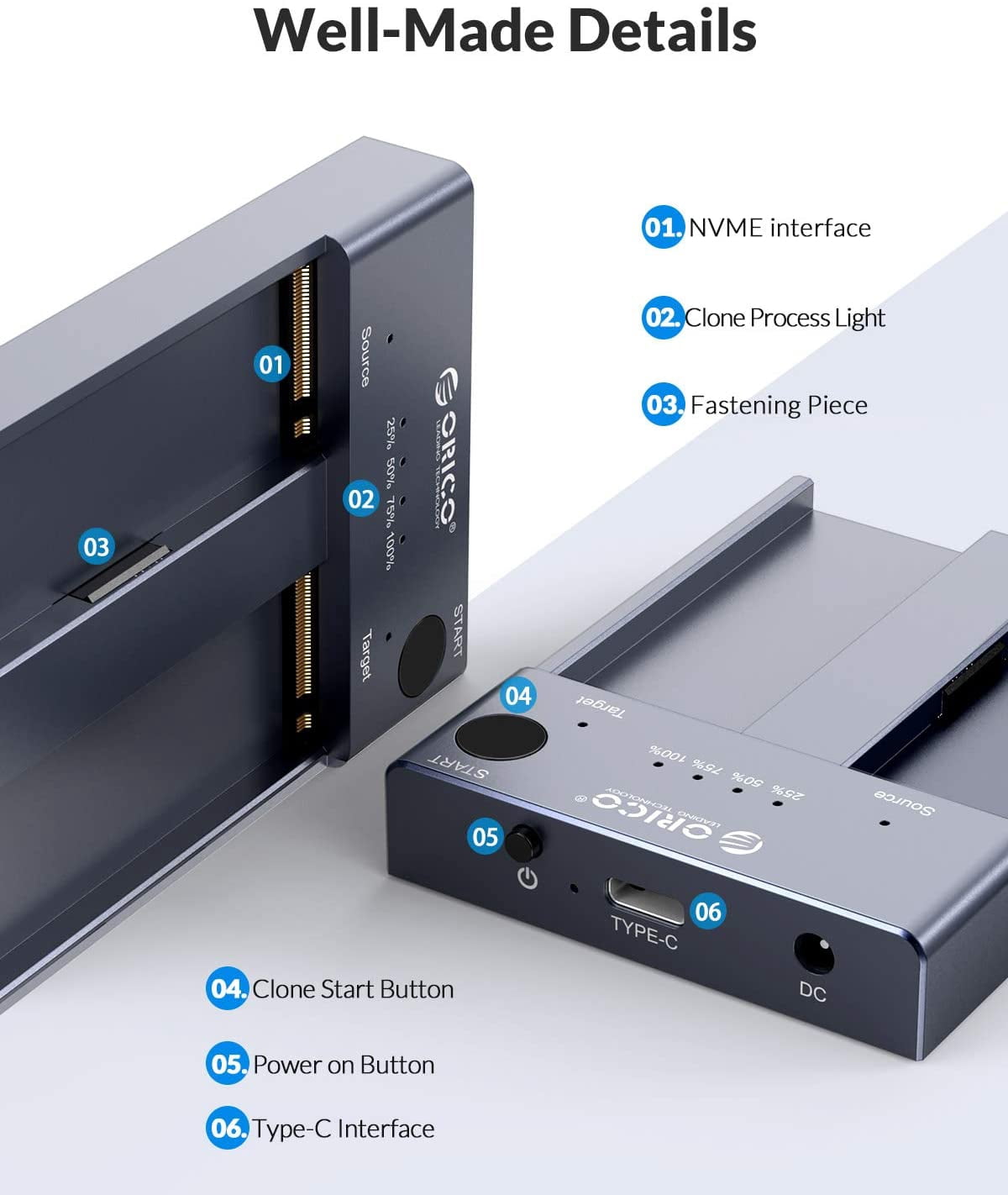
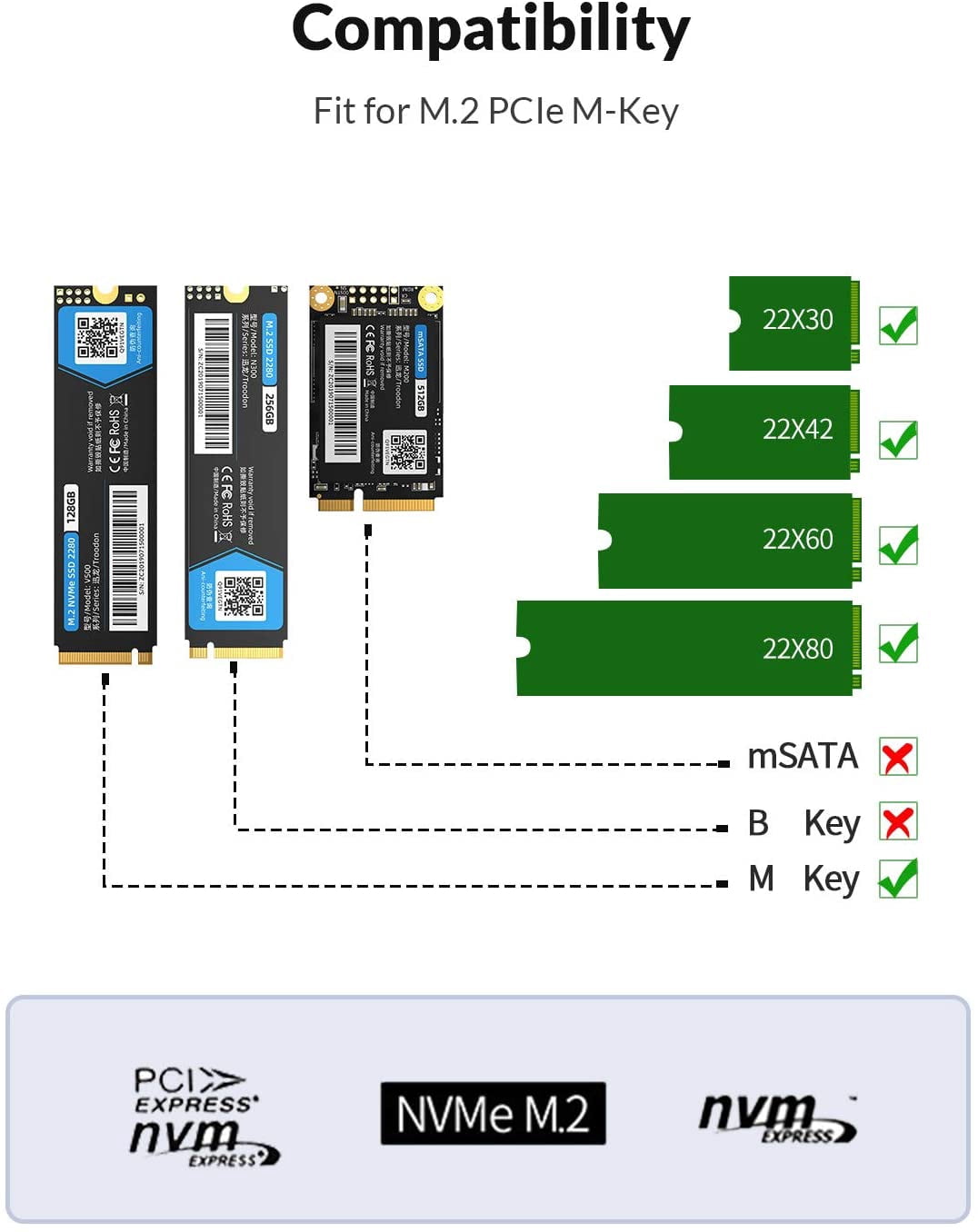
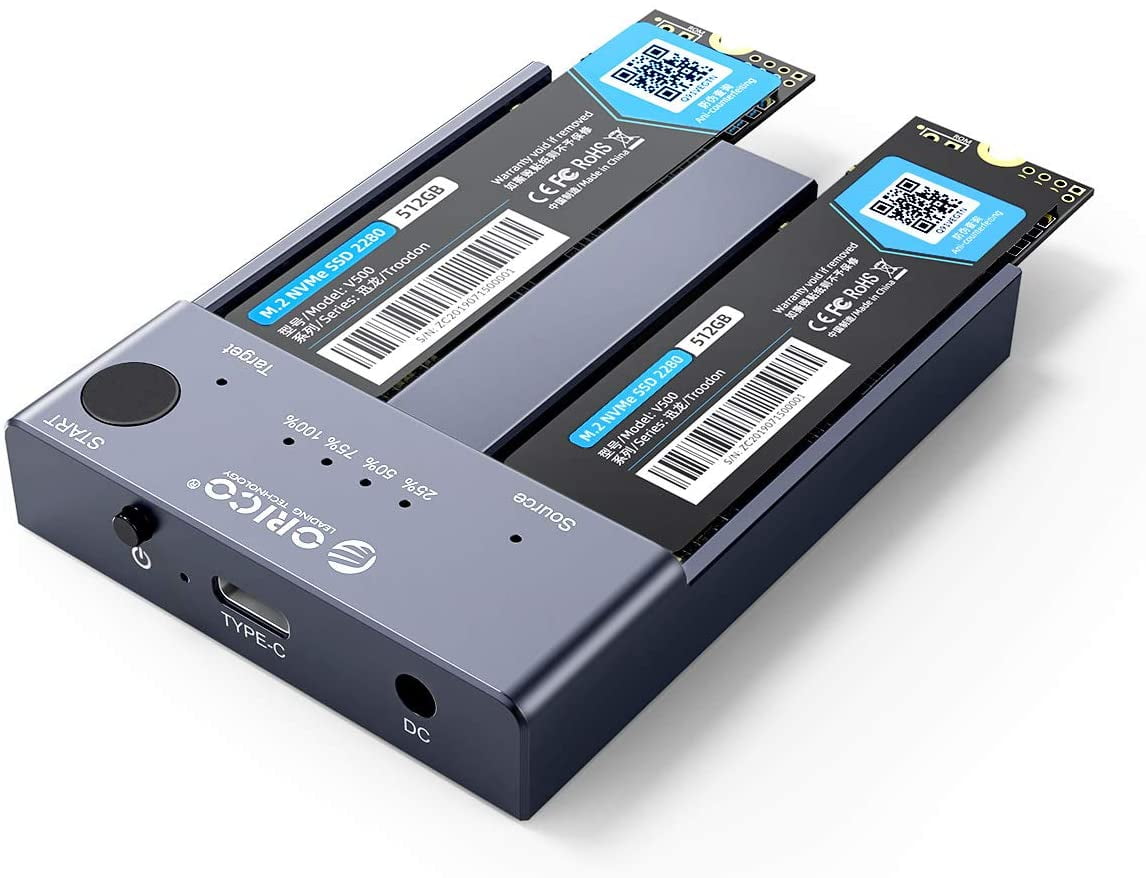
<p>Note: <br>1. We send the US standard by default, if you need other specifications can contact us to send you other specifications. <br>2. Please contact us if you have any questions. We will provide you with customer support as soon as possible within 48 hours <br>3. This m2 ssd enclosure is only a hard drive case and does not contain a hard drive <br>4. Ensure that the capacity of the target SSD is greater than that of the source SSD. <br> <br>ORICO M.2 NVME SSD Enclosure Aluminum Dual Bay with Offline Clone Function USB C 3.1 Gen2 10Gbps for M Key & M/B Key NVME PCIe SSD <br> <br>ORICO 2 Bay M.2 NVMe ssd enclosure (No Drive)is a versatile external storage clone solution designed for M Key NVMe PCIe SSDs. When not using the clone function, the M.2 enclosure is an external M.2 SSD reader,expand storage capacity by connecting devices such as PC, laptop, smart TV, PS4, XBOX, etc.can recognize and operate with two SSDs simultaneously, supporting capacities up to 4TB per disk(22110/2280/ 2260/ 2242). Utilizes USB 3.1 Gen 2 standard (USB-C port) for ultra-fast data transmission speeds up to 10Gbps, supporting the UASP protocol for 1GB file transfer in one second. Aluminum Alloy Construction allows you to dissipate heat faster during high-speed transmission. One-key offline cloning, allowing direct data transfer between two SSDs without the need for a computer, simplifying data copying tasks. Widely compatible with Windows/Mac/Linux, and without requiring additional drivers or software installation <br> <br>Package Contents: <br>1 x M.2 Cloner Enclosure <br>1 x 5V/4A Adapter (Power Supply) <br>1 x USB-C to USB-C Cable <br>1 x USB-C to USB-A Cable <br>1 x User Manual <br> <br>Offline Cloning Operating Instructions: <br>Insert SSDs: Begin by inserting two M.2 NVMe SSDs into the designated "target" and "source" slots on the enclosure. Ensure that the capacity of the target SSD is greater than that of the source SSD. <br>Connect Power: Connect the included power adapter to the tool-free dual NVMe dock. <br>Initiate Clone Process: Press and hold the clone button located on the enclosure for approximately 10-15 seconds until the LED indicator begins to show progress. <br>Monitor Progress: The LED indicator lights will display the progress of the cloning process (25% - 50% - 75% - 100%). Once the cloning is complete, all four LED lights will remain lit. <br>Completion: Once the cloning process is finished, the SSDs can be removed from the enclosure for use as desired.</p> <p>❗Attention:<br>1. Do not use a USB cable to connect to the computer during the cloning process.<br>2. If there are bad sectors in the SSD, copying may stop. Before copying, scan the SSD to make sure there are no bad sectors.<br>3. Please back up the data on the target disk before copying to avoid losing important data.<br>4. Make sure the computer recognizes both SSD disks when plugged into our nvme enclosure. If not, you cannot clone <br><br><br></p>
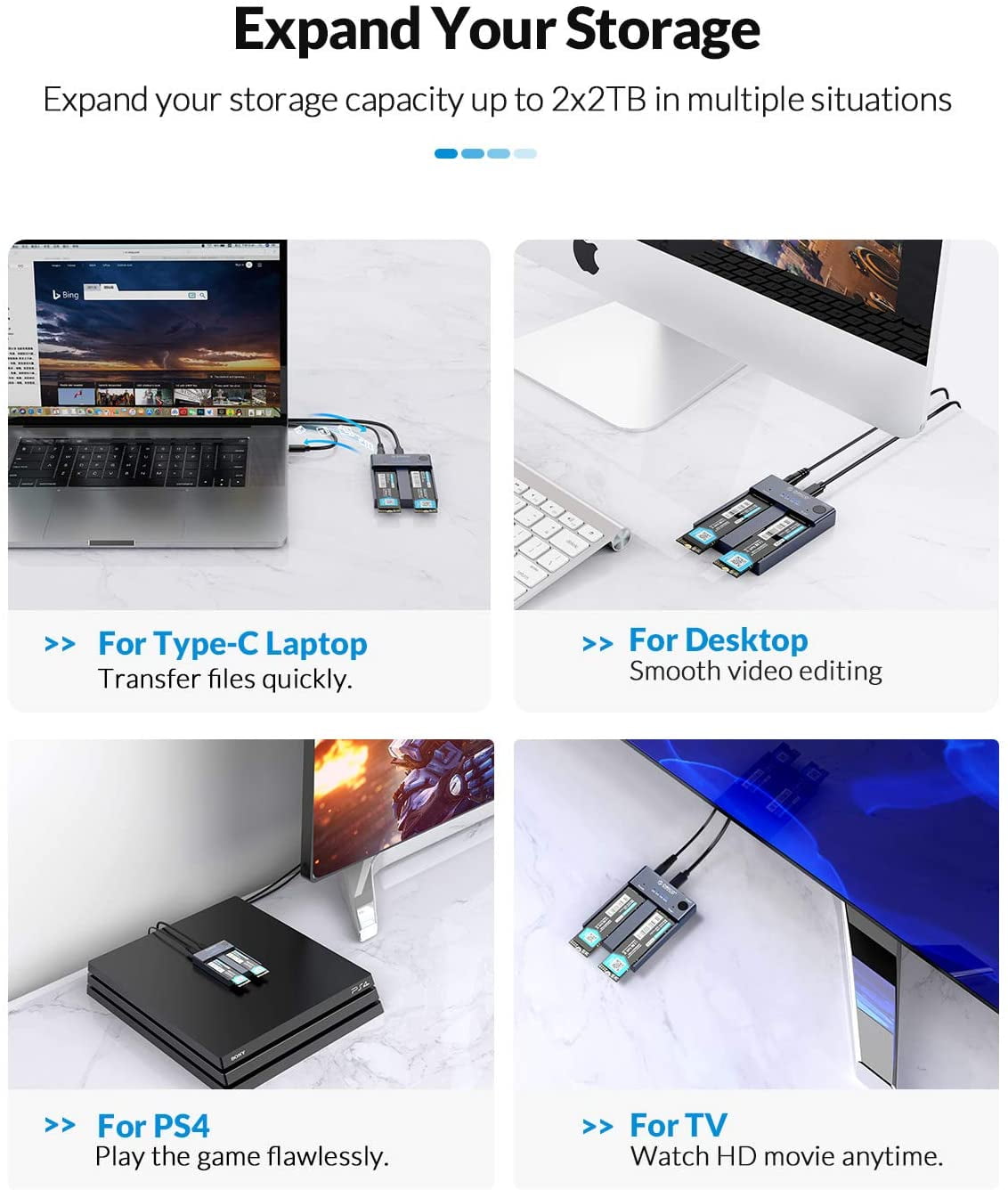
- PORTABLE EXTERNAL STORAGE: this M.2 NVMe cloner is specially designed for M Key NVMe PCIe SSD(22110/2280/ 2260/ 2242), Supports 2 M.2 NVMe hard disk reads and writes at the same time. Compatible with Windows/Mac/Linux, can be used to offline clone or to expand storage capacity by connecting PC , Laptop computers, smart TVs, PS4, XBOX and other devices.
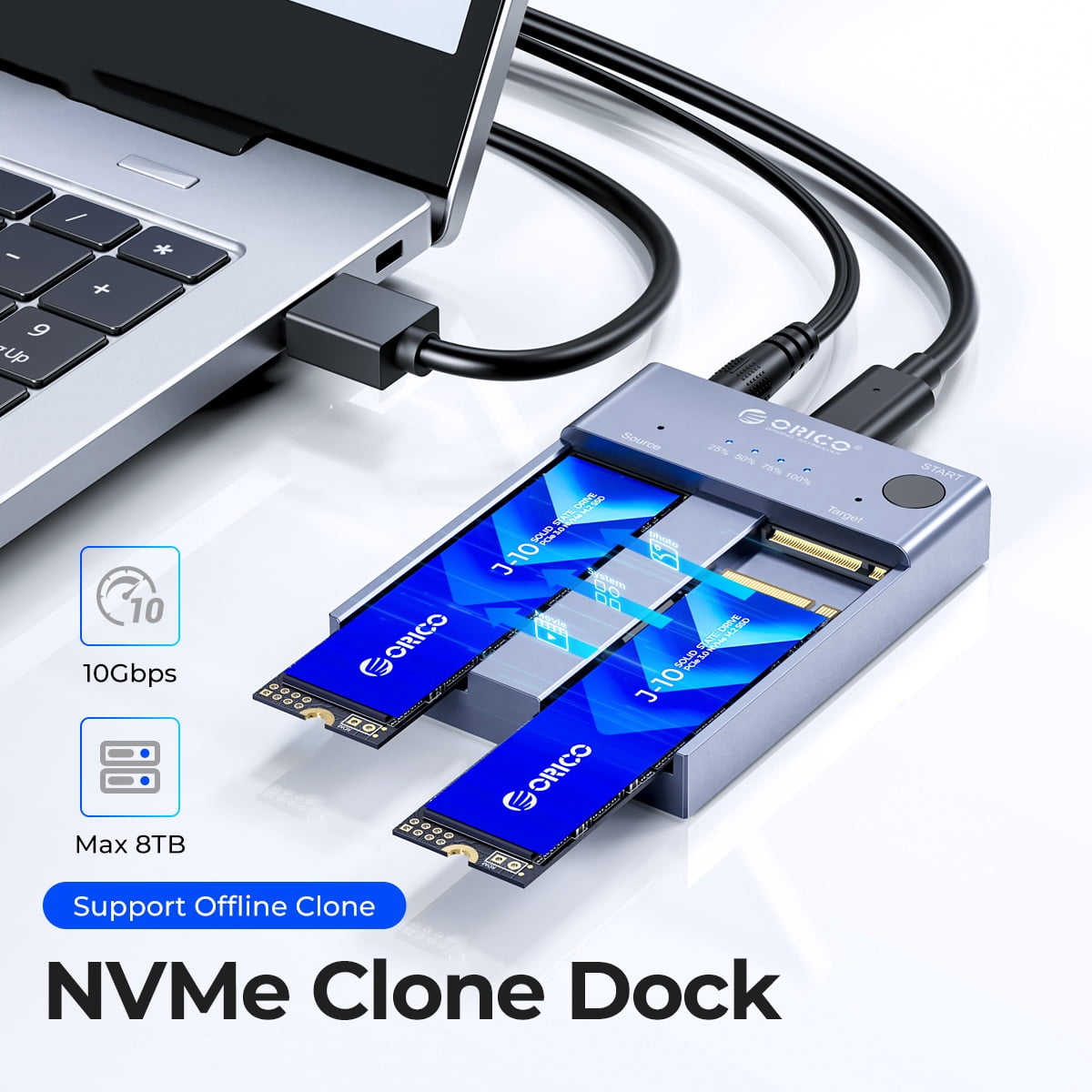
- ONE-KEY OFFLINE CLONE: This dual-slot m.2 NVMe duplicator can not only be used as an external NVME SSD to expand your storage capacity, but also can be used for offline backup. No need to connect to a PC, just plug in and press the start button then you can back up your important data. LED indicator can monitor the SSDs' clone progress at any time. Note: please back up the data on the target disk before cloning to avoid losing important data.
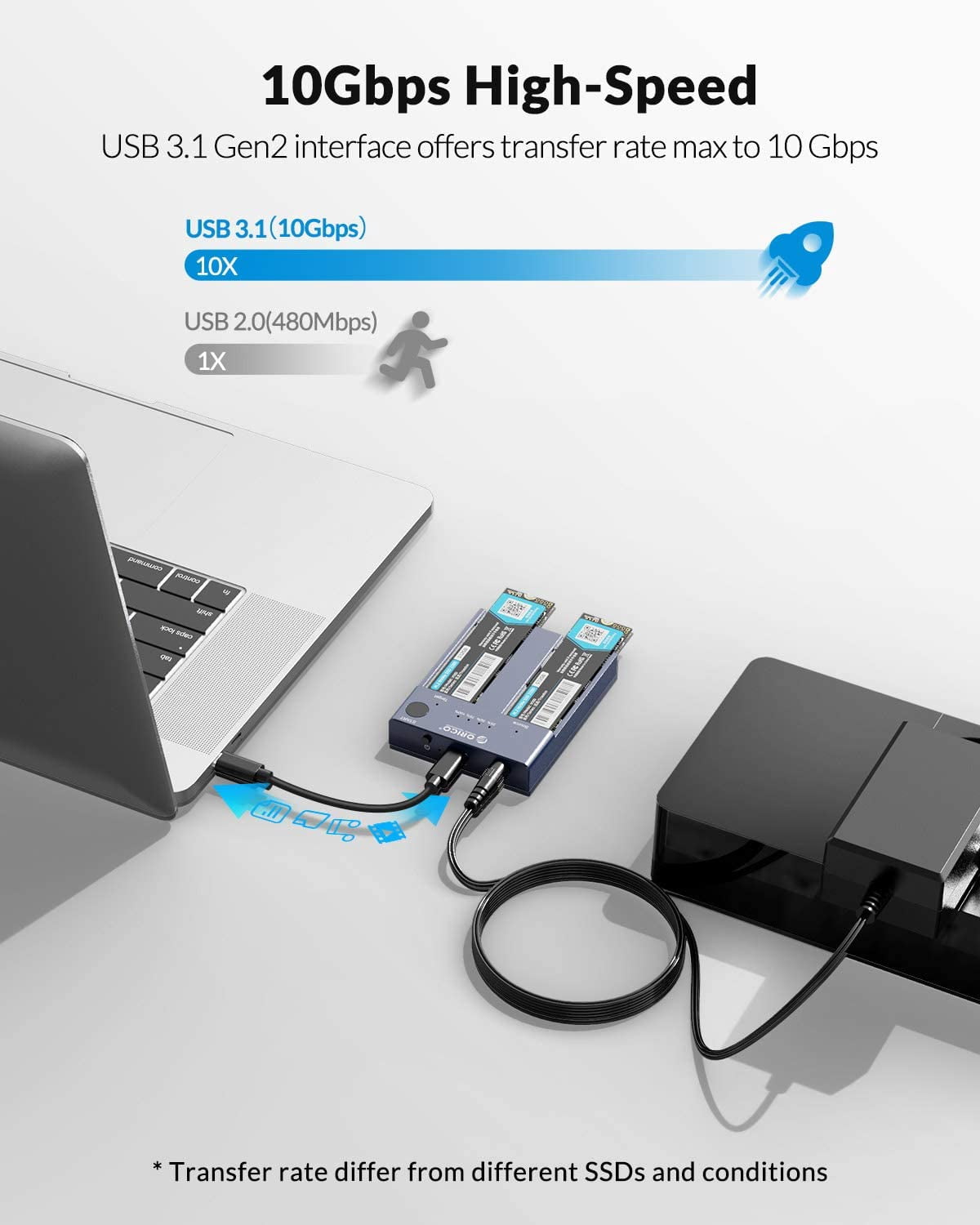
- 10GBP/S HIGH-SPEED: ORICO USB 3.2 Gen2 m.2 cloner docking station is equipped with C to C cable and C to A cable, giving you more choices. The fastest transmission speed can reach about 1000MB/S with C to C cable and about 500MB/S with C to A cable. At the same time, it supports UASP acceleration protocol which can make your NVME SSDs run more quickly and stably.
- EASY TO USE: ORICO Tool-Free nvme dock are very easy to use, no need any tools. They all support plug & play and hot swap, no drivers required. Except the SSDs, you do not need to prepare anything else, because the package contains all the accessories you need: two 0.5m data cables (A to C and C to C) and a 5V/4A power adapter.
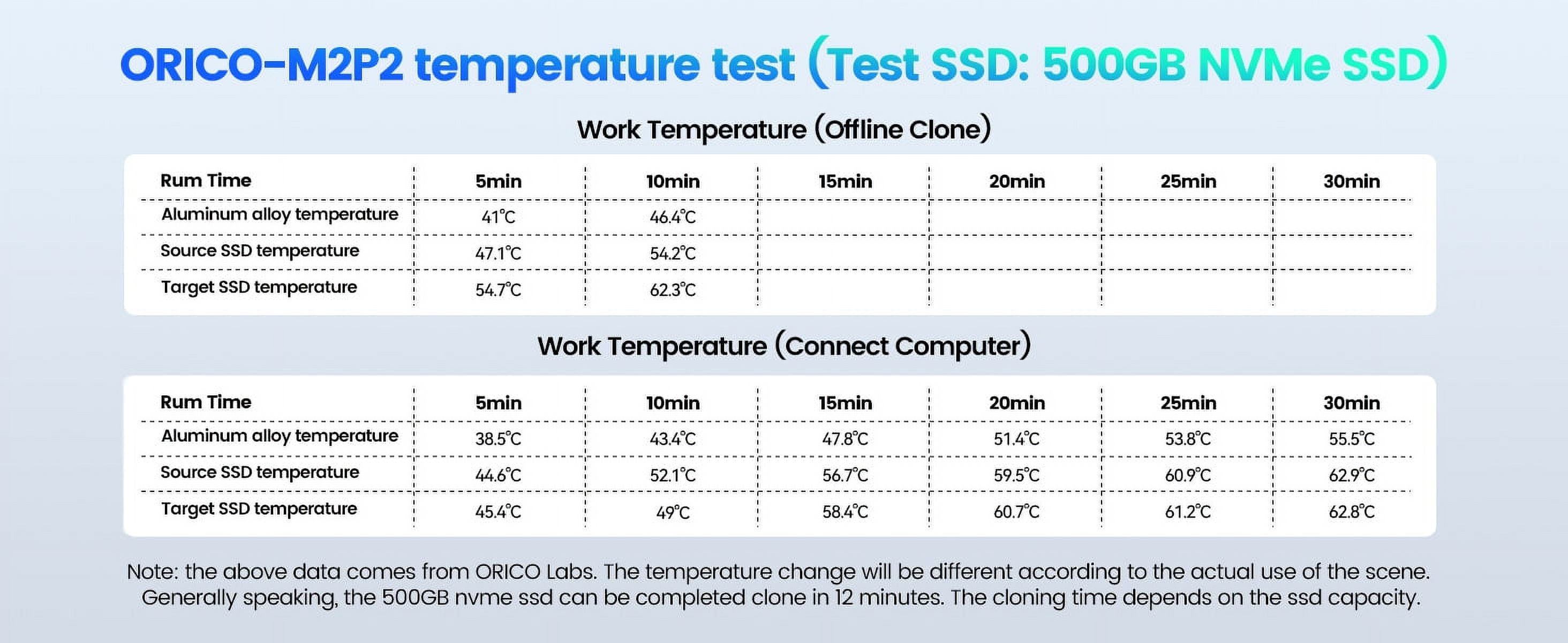
- 12-MONTH-WORRY-FREE WARRANTY: ORICO M.2 external drive docking station will automatically go to sleep after 10 minutes of inactivity; the hard disk is not inclued in the package; ORICO offers 12-month warranty and lifetime email technical support. If you have any problems, please contact us, we will give you a satisfactory solution within 24 hours. NOTE: it is a normal phenomenon that all SSDs will overheat due to high speed. Please touch it carefully to avoid burns.
| HD capacity | 2 TB |
|---|---|
| HD type | None |
| Brand | ORICO |
| Internal/external | External |
| Interface type | USB 3.1, USB 3.2 |
| Hard drive form factor | 2280 |
| Read speed | 10Gbps |
| Write speed | 500 MB/s |
| Model name | M2P2-C3-C |
| Accessories | 1 x M.2 Cloner Enclosure 1 x 5V/4A Adapter (Power Supply) 1 x USB-C to USB-C Cable 1 x USB-C to USB-A Cable 1 x User Manual |
| Height | 2.4 in |
| Weight | 0.5 lb |
| Compatibility | Windows/Mac/Linux |
| Retail packaging | Single Piece |
| Multipack quantity | 1 |

Bestseller ranking
History




Customers who viewed this product also viewed
Computers


Correction of product information
If you notice any omissions or errors in the product information on this page, please use the correction request form below.
Correction Request Form